Wallpapers New Tab
Sponsored Link:
Welcome to Wallpapers New Tab
Thank you for installing and using our extension
Features:
Install and open.
- After installing the extension. You click on the icon to choose the images to use for your new tab.
You can change your new tabs background image in google chrome.
1.Open the Chrome browser and sign into your Google account if you're not already signed in.
2.Click on the Customize option available on the right-hand side of your address bar, as shown below:
3.Scroll down until you see the "Background image" option and select it by clicking on it once:
Here is an even more detailed explaination.
In order to change new tab background image in chrome, you need to follow following steps:
Open Google Chrome and click on the three dots at the top right of the page and select Settings.
Now click on "Show advanced settings" link.
Scroll down to the bottom of page and click on "Change" button under "Appearance" section.
Here you will see an option "Background image" just select it and click on change button next to it.
Tutorial:
- Install the Extension
-
After installing the extension, click on the icon
 on the toolbar.
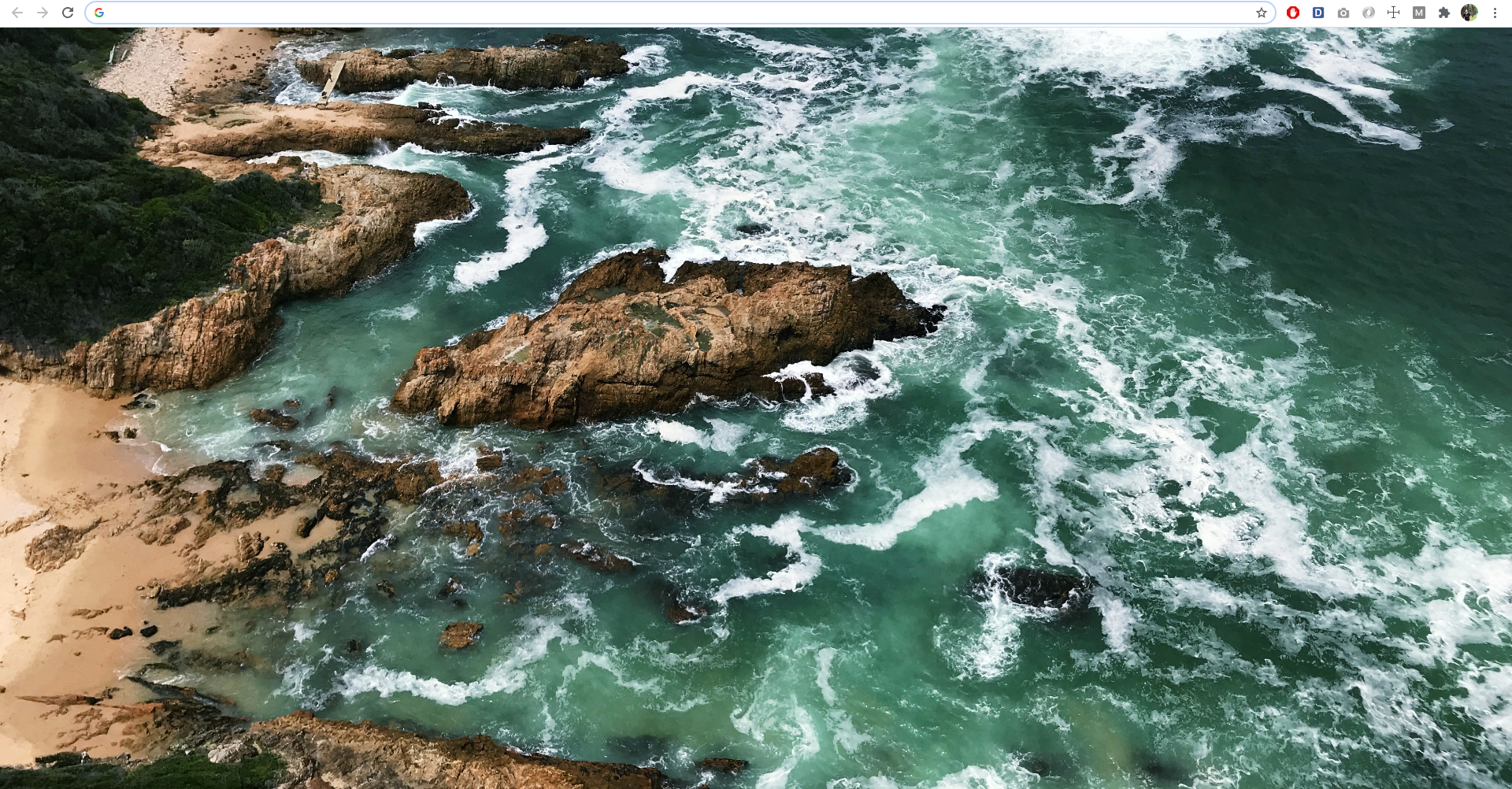
Free! Change your browser background with the best images in the new tabs page.
Sponsored Link: