Save Webpage to HTML
Sponsored Link:
Welcome to Save Webpage to HTML
Thank you for installing and using our extension
Features:
Click on the extension icon to begin saving the webpage.
How do you save the current webpage you are on?
How to save a web page as a PDF file?
Copy the URL of the page from your browser.
Click on File and then Save Page as… in Google Chrome, or press Ctrl+S (Windows) or Cmd+S (Mac).
Select Save Page as… in the dialog box and click on Save.
Choose your preferred storage location and give your file a name before clicking OK
What is the benefit of saving the current web page?
Saving a page to PDF will allow you to save it for later use or share it with others. This is especially useful if you are browsing online and find something that you want to keep for future reference.
How do I save an article in Read Mode?
To save an article in Read Mode, click on the "Save" icon located at the top right corner of your web browser window.
Tutorial:
- Install the Extension
- After installing the extension, click on the icon on the toolbar.
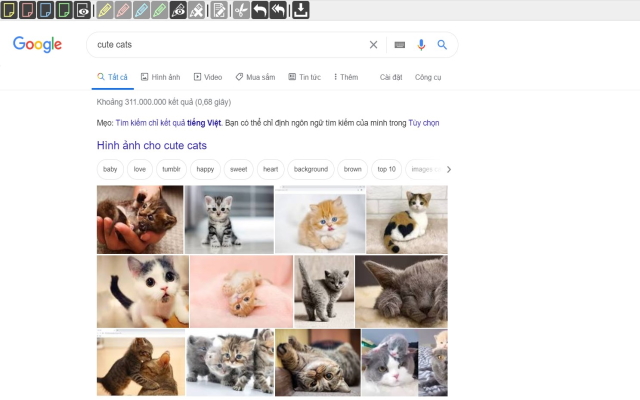
Getting started:
- Wait until the page you wish to save is fully loaded inside the Chrome browser
- Click on the extension button in the extension toolbar to process and save the page.
- You can click again on the button to cancel the action when processing a page.
- Open the context menu by right-clicking the extension button in the extension toolbar or on the web page. It allows you to save:
- the current tab,
- the selected content,
- the selected frame,
- the selected link(s).
- Select "Annotate and save the page…" in the context menu to:
- Highlight text,
- add notes,
- remove content.
Sponsored Link: