Export Bookmarks & History for Google Chrome™
Sponsored Link:
Welcome to Export Bookmarks & History for Google Chrome™
Thank you for installing and using our extension
Features:
Export your bookmarks quickly from Google Chrome with this software extension.
You can export your bookmarks from Firefox in order to import them into another browser.
This article explains how to export your bookmarks from Firefox and then import them into another browser such as Chrome, Internet Explorer, or Opera.
You can also import your saved passwords with the Bookmarks Toolbar Importer add-on for Firefox.
Exporting Your Bookmarks from Firefox
To export your bookmarks, follow these steps:
Click the Bookmarks button (menu) and select Show All Bookmarks (Ctrl+Shift+B).
The Library window opens.
Click Organize in the toolbar above the Library window and choose Export HTML… from the drop-down menu that appears. The Export HTML window opens.
In the Save As field, enter a name for your bookmark file and click Save. The Import Bookmarks dialog box opens. You can use this dialog box to change the name of your bookmark file if you don't like the name that was created by Firefox when you exported it.
Tutorial:
- Install the Extension
-
After installing the extension, click on the icon
 on the toolbar.
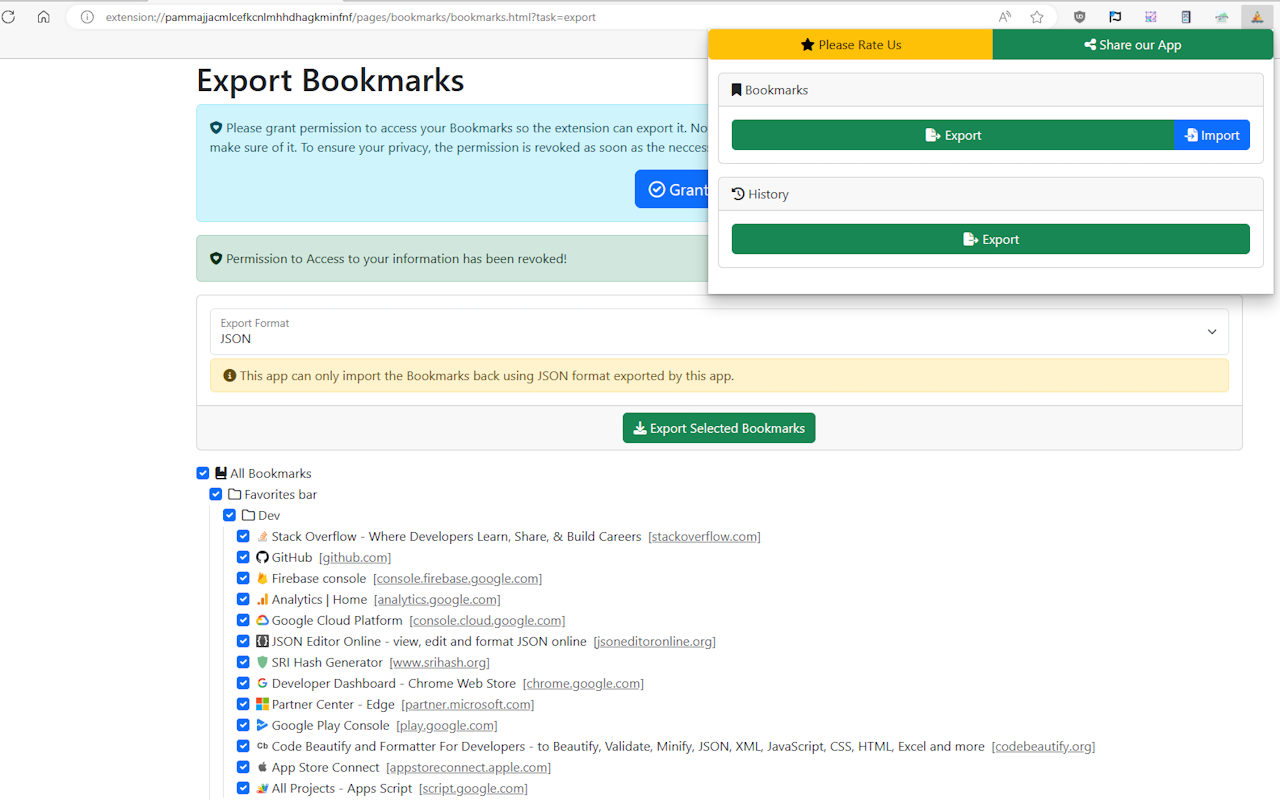
- Quickly export your browser History and Bookmarks for Backup or Transfer. We support JSON, CSV and XML.
- Import Bookmarks back selectively with duplication detection. Note: only JSON format is supported for importing.
- Safe and secure: This app works 100% offline and does not need the Internet if you want to disconnect from the Internet just to be sure.
- Privacy focused: The permission to read your History or Bookmarks are only granted for a few milliseconds to get the list. After that the app permission is immediately revoked.
Sponsored Link: