Dark Mode for PDF
Sponsored Link:
Welcome to Dark Mode for PDF
Thank you for installing and using our extension
Features:
Install and open.
- After installing the extension. You click on the icon to turn your PDF into dark mode.
How do you turn dark mode on for pdf files for desktop software?
In Adobe Acrobat DC and Reader DC, you can turn on dark mode by clicking the Tools menu, then clicking Preferences. In the dialog box that appears, select the General tab and check Dark Mode in the Display section.
In older versions of Adobe Acrobat, you can turn on dark mode by clicking the View menu, then clicking Document Colors and choosing Dark from the drop-down menu at the top of the window.
On Windows 10, you can go to Settings > System > Display > Colors and make sure “Allow apps to choose their own colors when in Dark Mode” is selected. If you want to manually set the colors of your PDF file, click “Open with…” and select Foxit Reader or Nitro Reader. Once opened in either of these applications, click File > Preferences > General > Set Theme > Dark (or Light).
For Adobe Reader,
Open a PDF file that you want to convert into Dark Mode
Go to File > Properties
Click on the General tab and click on ‘Convert document colors to grayscale’
Click Apply, then OK
Tutorial:
- Install the Extension
-
After installing the extension, click on the icon
 on the toolbar.
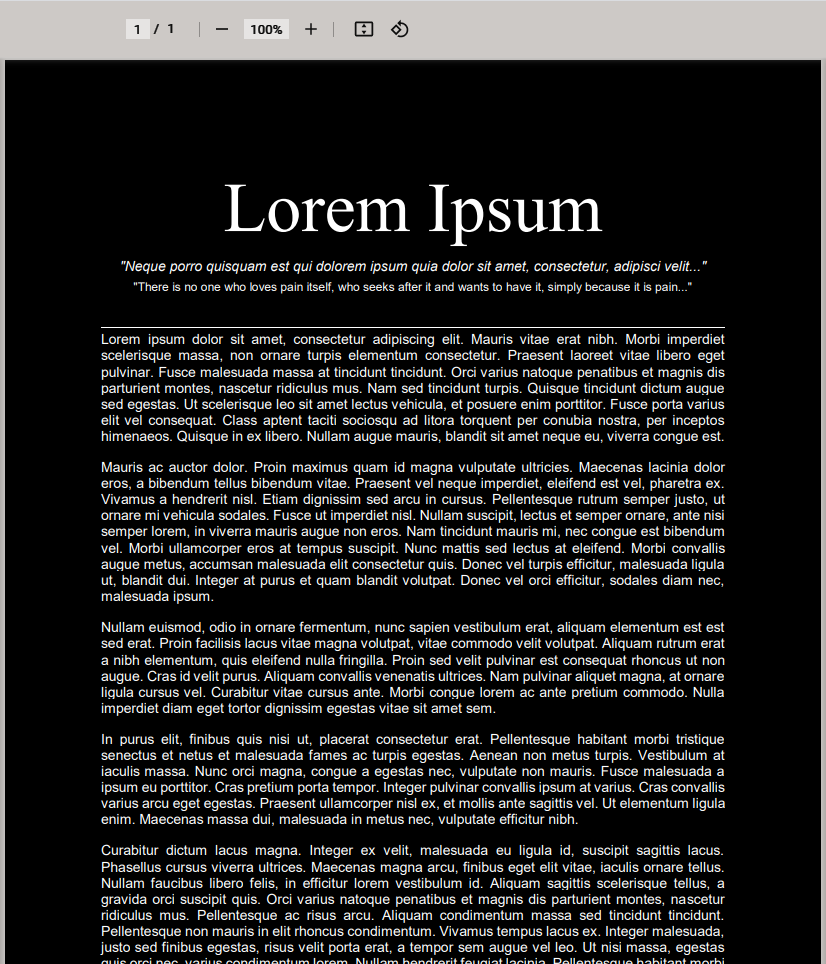
Free! This will darken your pdf file when opened in the browser.
Sponsored Link: