1
How to use our extension
Choose Folder to Save Downloads in Google Chrome™
Sponsored Link:
Welcome to Choose Folder to Save Downloads in Google Chrome™
Thank you for installing and using our extension
Features:
You can also change your download location folder inside the Google Chrome settings.
Step 1: Open Google Chrome.
Step 2: Click on the menu button in the upper-right corner of the screen.
Step 3: Select Settings from the drop-down menu.
Step 4: Under Advanced settings, scroll down and click on Change.
Step 5: Click Browse to find your downloads folder on your computer and then click OK.
Tutorial:
- Install the Extension
-
After installing the extension, click on the icon
 on the toolbar.
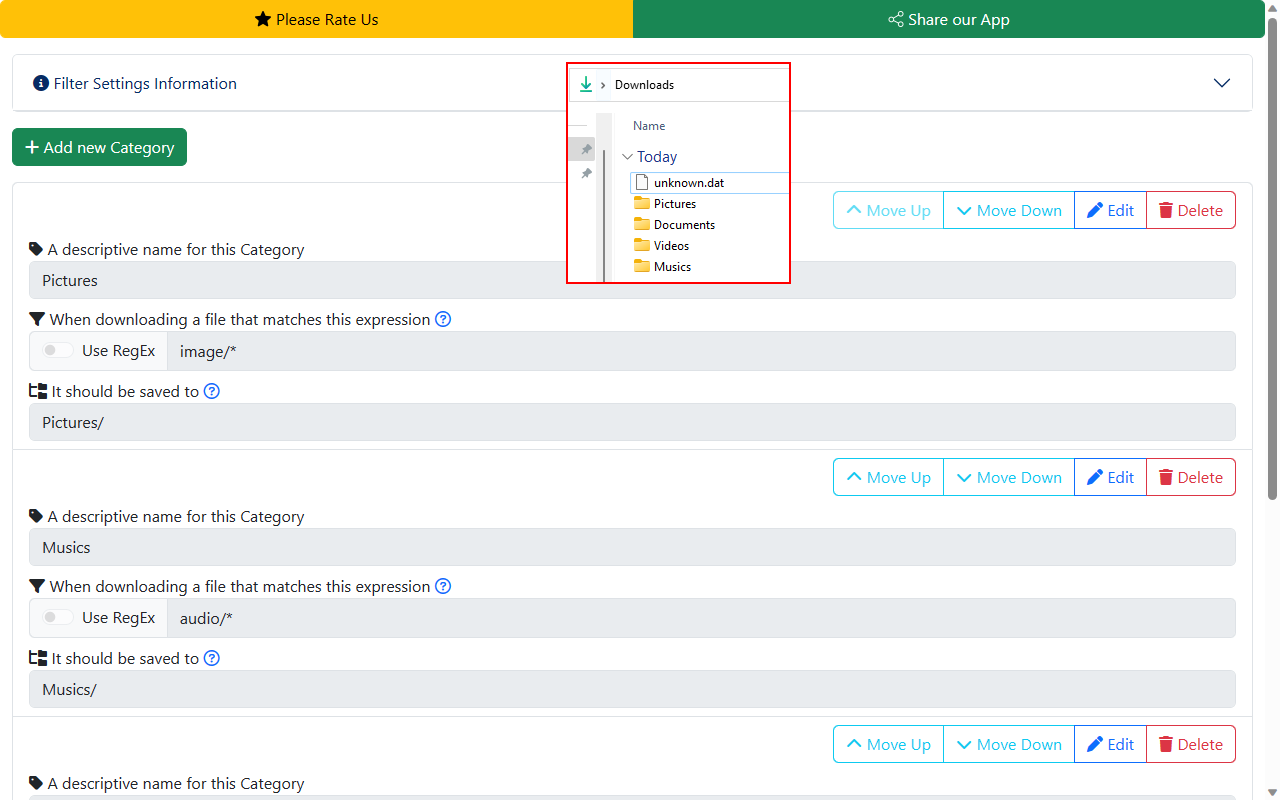
Quickly organize your Downloads folder into neat Categories.
Fully customizable with simple Filter expression.
Advanced scenarios supported with optional Regular Expression (
RegEx) function.
Sponsored Link: